Resolving Merge Conflicts
Overview
Merge conflicts typically happen when two committed changes are competing for the same line in the same file. Resulting in Git not knowing which one to choose, so it asks you to resolve it. This is completely normal and occasionally happens in team projects.
By the end of this task, you will be able to:
- Understand why merge conflicts occur
- Identify conflict markers in a file
- Resolve a merge conflict using VS Code
- Complete the merge after resolving conflicts
Understanding How Conflicts Happen
A merge conflict occurs when:
- You create a branch from
mainand edit a file (e.g., line 5 ofindex.html). - Someone else (or you, on another branch) also edits the same line on
main. - When you try to merge your branch into
main, Git finds two different versions of the same line and does not know which one to keep.
When Conflicts Do Not Happen
If two branches edit different files, or different lines in the same file, Git can merge them automatically without any conflict. Conflicts only happen when the exact same lines are changed in both branches.
Creating a Conflict (For Practice)
To practice resolving a conflict, we will intentionally create one.
Making a Change on Main
-
Ensure you are on the
mainbranch: -
Open
index.html(or any file in the project) and change the<h1>tag on line 1 to: -
Save the file by pressing Ctrl+S.
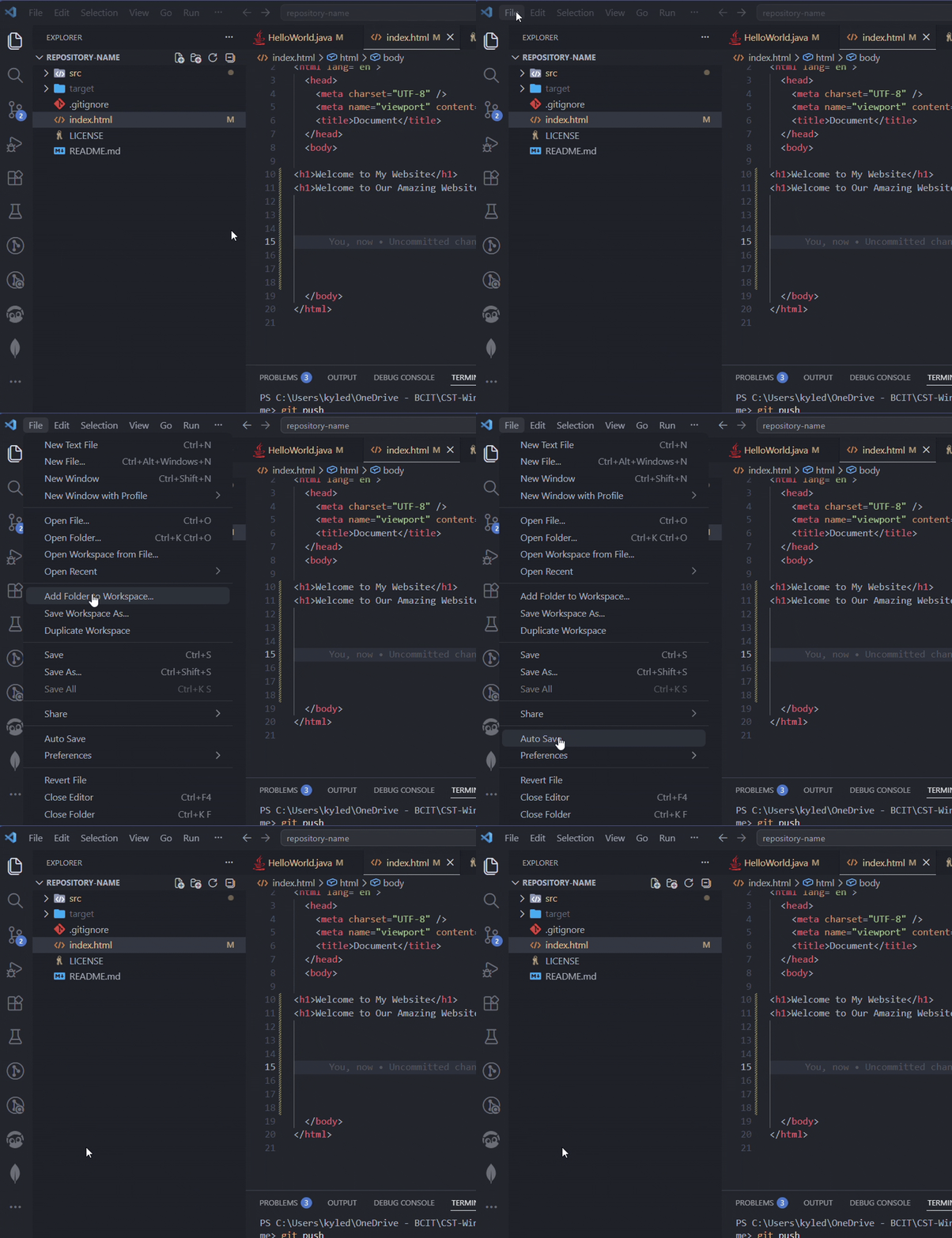
Enabling Auto Save
You can enable auto save in VS Code by going to File > Auto Save. This will automatically save your files whenever you make changes, so you do not need to press Ctrl+S each time.
-
Stage and commit the change:
Making a Conflicting Change on a Feature Branch
-
Create and switch to a new branch:
-
Reset the branch back one commit so it does not have the change you just made on
main:Important
This step is necessary for the exercise to create a conflict. The
git reset --hardcommand will discard changes, so only use it when you are sure you want to go back. -
Edit the same line in
index.htmlwith a different heading: -
Save the file by pressing Ctrl+S.
-
Stage and commit the change:
Triggering the Conflict
-
Switch back to
main: -
Run the merge command:
You should see:
Auto-merging index.html
CONFLICT (content): Merge conflict in index.html
Automatic merge failed; fix conflicts and then commit the result.
Success
If you see the CONFLICT message, you have successfully triggered a merge conflict. This is expected, so do not panic!
Identifying the Conflict Markers
When a conflict occurs, Git inserts special markers into the conflicted file to show you both versions.
- Open the conflicted file (
index.html) in VS Code.
You will see something like this:
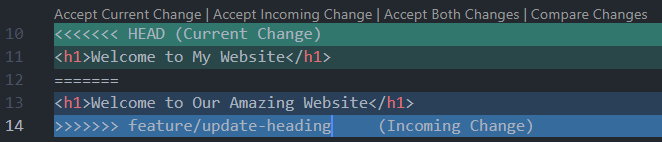
Here is what each marker means:
| Marker | Meaning |
|---|---|
<<<<<<< HEAD |
The start of the current branch's version (in this case, main) |
======= |
The divider between the two versions |
>>>>>>> feature/update-heading |
The end of the incoming branch's version |
Everything between <<<<<<< HEAD and ======= is what is currently on main. Everything between ======= and >>>>>>> feature/update-heading is what is on the feature branch.
VS Code Highlighting
VS Code will highlight the conflicting sections and display clickable options above the conflict:
- Accept Current Change - keeps the
mainversion - Accept Incoming Change - keeps the feature branch version
- Accept Both Changes - keeps both versions, one after the other
- Compare Changes - opens a side-by-side diff view
Resolving the Conflict
You have three options for resolving the conflict:
Option A: Accept One Version
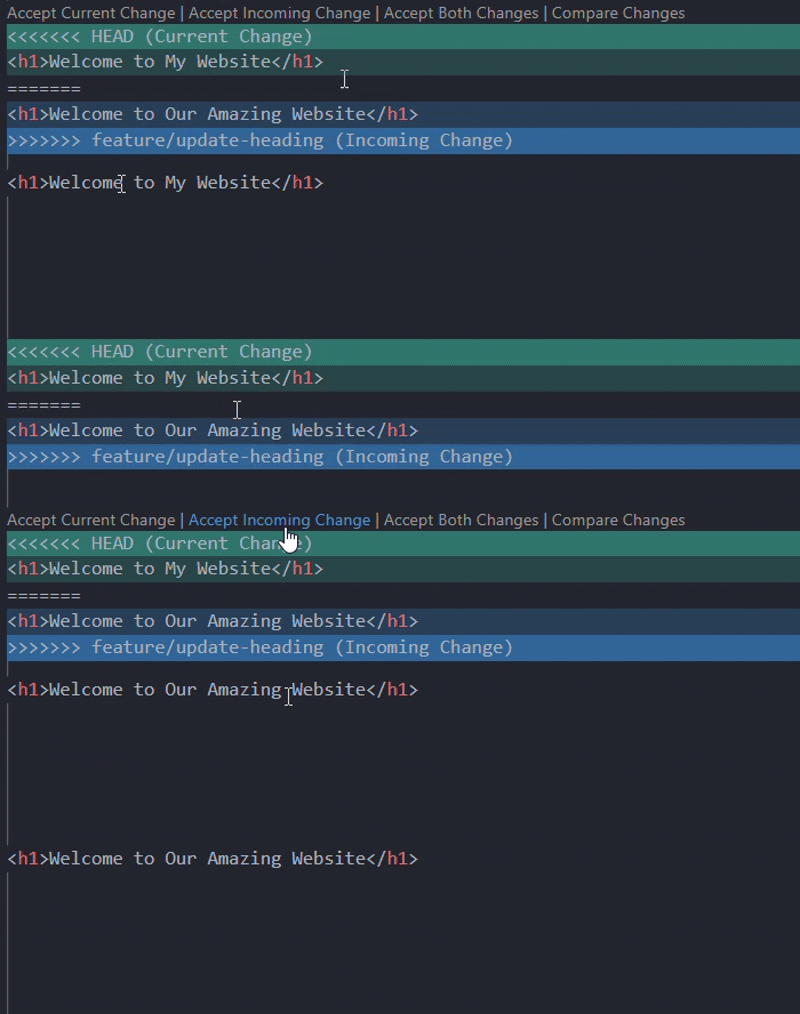
- Click Accept Current Change or Accept Incoming Change in VS Code to keep one version and discard the other.
- Save the file by pressing Ctrl+S.
Option B: Accept Both
- Click Accept Both Changes to keep both lines. This is useful when both changes are needed.
- Save the file by pressing Ctrl+S.

Option C: Edit Manually
- Delete the conflict markers (
<<<<<<<,=======,>>>>>>>) from the file. -
Write the final version yourself. For example:
-
Save the file by pressing Ctrl+S.

Remove ALL Conflict Markers
If you choose to edit manually, make sure you delete all of the conflict markers. Leaving them in will break your code. Your file should look like a normal file with no <<<<<<<, =======, or >>>>>>> characters anywhere.
Completing the Merge
After resolving the conflict, you need to tell Git that the conflict is fixed.
- Save the file by pressing Ctrl+S.
-
Stage the resolved file:
-
Commit the merge:
-
Push the resolved merge to GitHub:
Success
If your push succeeds and the file looks correct on GitHub, you have successfully resolved a merge conflict! Congratulations!
Verifying on GitHub
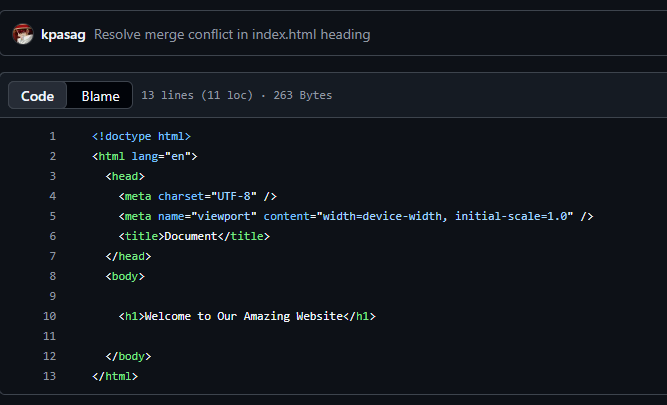
As a final check, confirm your resolution appears correctly on GitHub.
- Open your repository on github.com.
-
Check that the merge commit appears in the commit history.

-
Click on the resolved file to confirm it contains your final version.
- Verify that no conflict markers are left in any files.
Conclusion
In this task, you learned how to:
- Understand why merge conflicts happen
- Read and interpret conflict markers (
<<<<<<<,=======,>>>>>>>) - Resolve conflicts using VS Code's built-in tools or by editing manually
- Complete a merge after resolving conflicts with
git add,git commit, andgit push
Merge conflicts are a normal part of working with Git, especially in teams. The more you practice, the less intimidating they become. You now have all the core Git skills you need to clone, commit, branch, merge, and resolve conflicts!