Committing and Pushing Changes
Overview
Now that you have a local copy of a repository, you need to know how to save your work and upload it to GitHub. In Git, this is a two-step process: committing saves a snapshot of your changes locally, and pushing uploads those commits to the remote repository on GitHub.
By the end of this task, you will be able to:
- Check the status of your working directory
- Stage files for a commit
- Write a meaningful commit message
- Push your commits to GitHub
Checking the Status of Your Changes
Before committing, it is good practice to see what has changed in your project.
- Open the terminal in VS Code (Ctrl+`).
-
Run the following command:
You should see output showing your modified, added, or deleted files:
On branch main
Changes not staged for commit:
  (use "git add <file>..." to update what will be committed)

        modified:   index.html

Untracked files:
  (use "git add <file>..." to include in what will be committed)

        about.html
Understanding the Output
Modified files are existing files you have changed. Untracked files are new files that Git has not seen before. Deleted files are files you have removed from the project. None of these changes are saved to Git yet. They are only on your local file system.
Staging Your Changes
Before Git can commit your changes, you need to stage them. Staging tells Git which changes you want to include in your next commit.
Staging Specific Files
-
Run the following command to stage a specific file:
-
Run the following to stage multiple specific files:
Staging All Changes
-
Run the following command to stage all modified and untracked files at once:
Be Careful with git add .
Using git add . stages everything in the current directory, including files you might not want to commit (like temporary files, logs, or configuration files with sensitive data). Always run git status before and after staging to make sure you are only committing what you intend to.
Using a .gitignore File
To prevent unwanted files from being staged, you can create a .gitignore file in the root of your repository. This file tells Git which files and folders to ignore. For example:
Any file or folder listed in .gitignore will not show up in git status and will not be staged by git add .. You can learn more at github.com/github/gitignore for common templates.
After staging, verify your staged files:
-
Run
git statusagain:
You should now see your files listed under "Changes to be committed":
On branch main
Changes to be committed:
  (use "git restore --staged <file>..." to unstage)

        modified:   index.html
        new file:   about.html
Success
If your files appear under "Changes to be committed," they are staged and ready to be committed.
Committing Your Changes
Now that your changes are staged, you can create a commit. A commit is a snapshot of your project at a specific point in time, along with a message describing what changed.
-
Run the following command:
You should see output like:
[main a1b2c3d] Add about page and update index
 2 files changed, 25 insertions(+), 3 deletions(-)
 create mode 100644 about.html
Writing Good Commit Messages
A good commit message is short, descriptive, and written in the imperative mood (like giving a command). Think of it as completing the sentence: "If applied, this commit will..."
Good examples:
Add navigation bar to homepageFix broken link on contact pageUpdate README with setup instructions
Bad examples:
stuff- too vaguefixed things- does not say what was fixedasdfgh- not descriptive at all
Do Not Forget the -m Flag
If you run git commit without the -m flag, Git will open a text editor (usually Vim) for you to write your message. If this happens and you are not familiar with Vim, press Esc, type :q!, and press Enter to exit without saving. Then try again with the -m flag.
Pushing Your Commits to GitHub
Your commit is currently saved locally on your machine. To upload it to GitHub so others can see it, you need to push.
-
Run the following command:
If this is your first time pushing, Git may ask you to set the upstream branch:
You should see output similar to:
Enumerating objects: 5, done.
Counting objects: 100% (5/5), done.
Delta compression using up to 8 threads
Compressing objects: 100% (3/3), done.
Writing objects: 100% (3/3), 1.02 KiB | 1.02 MiB/s, done.
Total 3 (delta 1), reused 0 (delta 0)
To https://github.com/username/repository-name.git
   c3d4e5f..a1b2c3d  main -> main
Success
If you see output like the above with no errors, your changes have been pushed to GitHub! You can verify by visiting your repository on GitHub and checking that your changes appear.
Authentication Error
If you see an authentication error when pushing, you may need to set up a Personal Access Token (PAT) instead of using your GitHub password. GitHub no longer supports password authentication for Git operations.
To create a PAT:
- Go to GitHub > Settings > Developer settings > Personal access tokens > Tokens (classic)
- Click Generate new token
- Give it a name, select the repo scope, and generate it
- Use this token as your password when prompted by Git
Verifying on GitHub
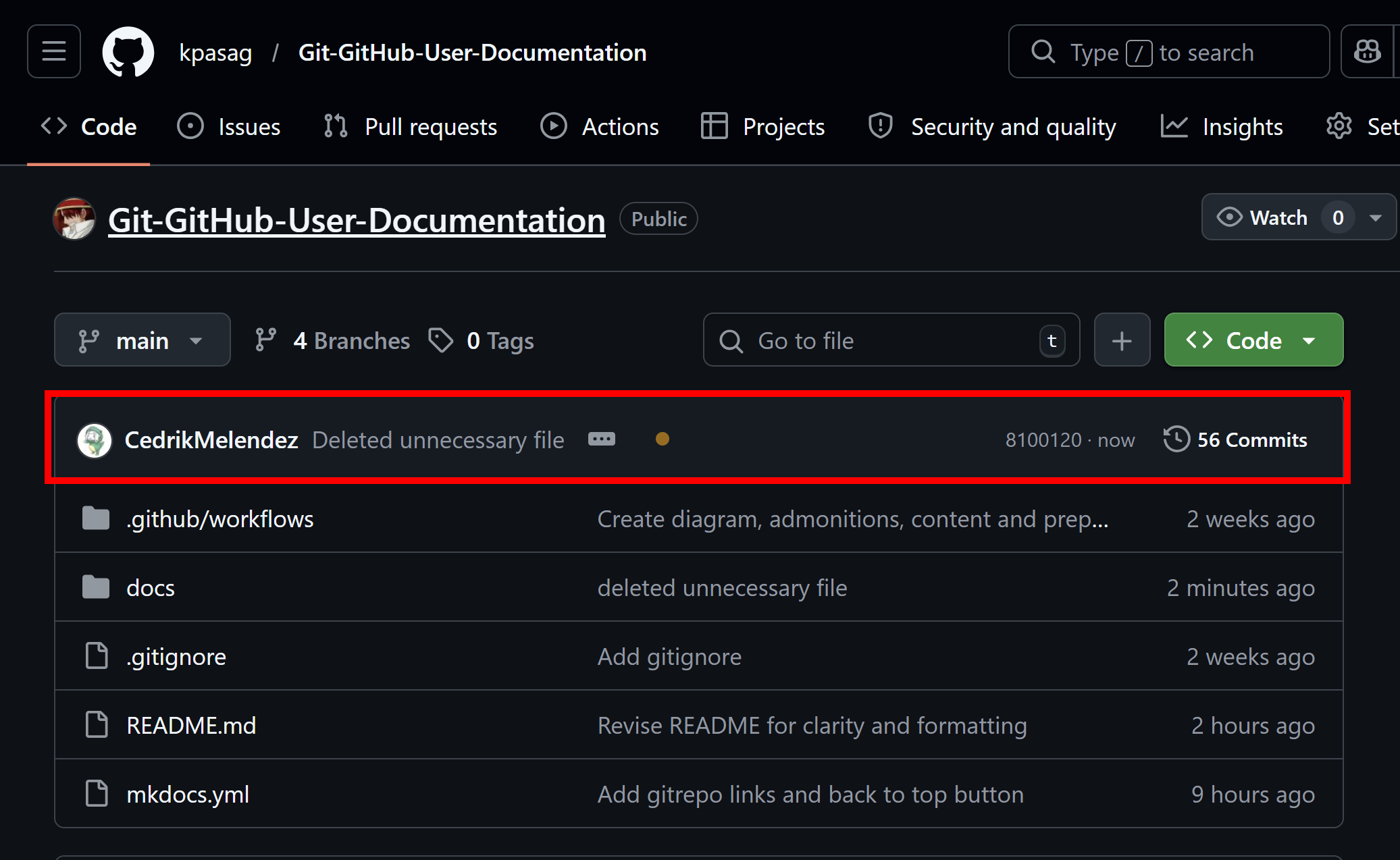
As a final check, confirm your changes appear on GitHub.
- Open your web browser and navigate to your repository page on github.com.
- Check that your latest commit message appears at the top of the file list.
- Click on the modified files to confirm your changes are there.
Success
If you can see your commit message and changes on GitHub, you have successfully committed and pushed your work!
Conclusion
In this task, you learned how to:
- Check the status of your changes with
git status - Stage files using
git add - Create a commit with a descriptive message using
git commit -m - Push your commits to GitHub using
git push - Verify your changes on GitHub
This is the core workflow you will use every time you work on a project. In the next task, you will learn how to create branches and merge them, which lets you work on features without affecting the main codebase.